Day-41: Setting up an Application Load Balancer with AWS EC2 🚀 ☁
#90 days of DevOps challenge- Day41

I am continue learning variety of DevOps technologies, including AWS, Linux, Python, Shell Scripting, Docker, Terraform, Jenkins, Git/GitHub, and Computer Networking. I have a strong ability to troubleshoot and resolve issues, and are consistently motivated to expand the knowledge and skills through exploration of new technologies.

What is Load Balancing?
Load balancing is the distribution of workloads across multiple servers to ensure consistent and optimal resource utilization. It is an essential aspect of any large-scale and scalable computing system, as it helps you to improve the reliability and performance of your applications.
Elastic Load Balancing:
Elastic Load Balancing (ELB) is a service provided by Amazon Web Services (AWS) that automatically distributes incoming traffic across multiple EC2 instances. ELB provides three types of load balancers:
Read more here
Application Load Balancer (ALB) - operates at layer 7 of the OSI model and is ideal for applications that require advanced routing and microservices.
Read more here
Network Load Balancer (NLB) - operates at layer 4 of the OSI model and is ideal for applications that require high throughput and low latency.
Read more here
Gateway Load Balancer (GLB) - A Gateway Load Balancer operates at layer 3 of the OSI model. Gateway Load Balancers use Gateway Load Balancer endpoints to securely exchange traffic across VPC boundaries. Use Gateway Load Balancers to deploy, scale, and manage virtual appliances, such as firewalls.
Read more here
🎯 Today's Tasks:
Task 1:
Launch 2 EC2 instances with an Ubuntu AMI and use User Data to install the Apache Web Server.
If You Don't Know How to create a template then Read My Previous Blog.
Script for Apache installation below.
  #!/bin/bash

   sudo apt-get update -y
   sudo apt-get install -y apache2
   sudo systemctl start apache2
   sudo systemctl enable apache2


You can see two instances are created.

Copy the public IP address of your EC2 instances and run in a new browser by putting :80 in the last of the public IP to check whether the Apache web is installed or not.
EC2-1


EC2-2


Modify the index.html file to include your devops line so that when your Apache the server is hosted and do it for 2nd instance which includes " Developer help in developing APP ".
Connect Instances using SSH.
Go inside the /var/www/html path and edit the index.html file
While editing the index.html file login as root then proceed further step.
EC2-1
 sudo su
 cd /var/www/html
 rm index.html
 vim index.html
<!DOCTYPE html> <html> <head> <title>Display Name</title> <style> body { background-color: blue; } .name { color: white; font-size: 24px; font-weight: bold; text-align: center; margin-top: 100px; } </style> </head> <body> <div class="name">Hey! Devops engineers helps in automating the task</div> </body> </html>
EC2-2
 ubuntu@ip-172-31-34-222:~$ sudo su
 root@ip-172-31-34-222:/home/ubuntu# cd /var/www/html
 root@ip-172-31-34-222:/var/www/html# ls
 index.html
 root@ip-172-31-34-222:/var/www/html# rm index.html
 root@ip-172-31-34-222:/var/www/html# vim index.html
 <!DOCTYPE html>
 <html>
 <head>
   <title>Display Name</title>
   <style>
     body {
       background-color: orange;
     }

     .name {
       color: white;
       font-size: 24px;
       font-weight: bold;
       text-align: center;
       margin-top: 100px;
     }
   </style>
 </head>
 <body>
   <div class="name">Hey! Developer helps in developing the App </div>
 </body>
 </html>
Task 2:
- Create an Application Load Balancer (ALB) in EC2 using the AWS Management Console.
Log in to the AWS Management Console and go to the EC2 dashboard
Click on "Load Balancers" in the left-hand navigation menu and then click the "Create Load Balancer" button


Select "Application Load Balancer" as the load balancer type and click "Create".


You need to Create a target group first by clicking on the below-marked option.

By clicking on Target group you will get the below page. Click on Create target group option. (Add EC2 instances you launch in task-1 to the ALB as target groups.)
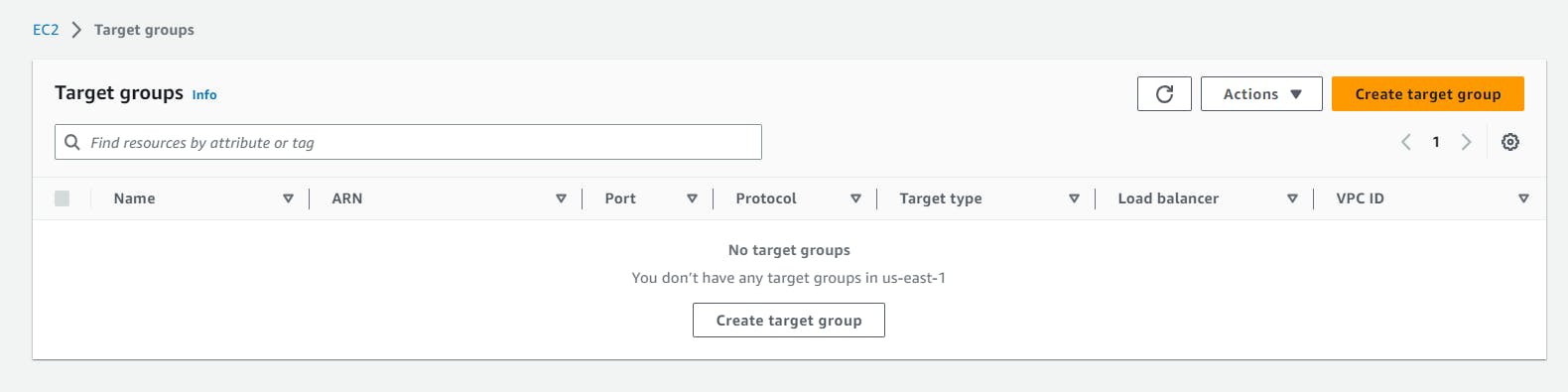


Now You have to create security Group for load balancer. Bydefault AWS provides you a group But it Good practice to create new one so click on Create New Security Group in Security Group Section. It will take you to the new tab on browser. Fill your group name as you want & give Description. Set Inbound Rule to HTTP port 80 And keep rest all by default and click on create group.


Now you Successfully Created Load balancer for EC2 instance. click on view load balancer and see the all things about your Load balancer.

Now Its Time to test your Load Balancer. Copy the DNS name from Load balancer Description and paste in new browser tab and refresh again and again DNS URL.


- Verify that the ALB is working properly by checking the health status of the target instances and testing the load-balancing capabilities.


If You Find Any Doubt Please visit the video . Here provide a video with all these steps clearly.
****************************************************************************
!!! Thank you for reading this Blog !!!
****************************************************************************
Hope you learned something new today! If you found this blog helpful, please like, share, and follow me for more blog posts like this in the future.


